

Setting up webhook.
Listen to webhook events that are dispatched on your integration.
Responding to webhook requests
To confirm the receipt of a webhook, your endpoint should respond with an HTTP status code of 200. Any other response codes, including 3xx codes, will be regarded as a failure. The response body and headers are not a matter of concern to us in this context.
Be idempotent
From time to time, it's possible that we could transmit the same webhook event on multiple occasions. It's important to ensure that your event processing remains idempotent, meaning that invoking the webhook multiple times will produce an identical outcome. This precaution prevents unintentionally providing a customer with the same value multiple times.
Always re-query
Upon receiving a webhook notification, it is advisable, whenever feasible, to make an additional API call to validate the received information and confirm its integrity before providing value to the customer.
const axios = require('axios');

const options = {
  method: 'GET',
  url: 'https://openapi.quidax.io/exchange-open-api/api/v1/users/me/deposits/<deposit_id>',
  headers: {
    accept: 'application/json',
    Authorization: 'Bearer <secret_key>'
  }
};

axios
  .request(options)
  .then(function (response) {
    console.log(response.data);
  })
  .catch(function (error) {
    console.error(error);
  });
Webhooks Retry
- we’ll send webhooks first attempt is immediately, second attempt is a 1 minute, 3rd attempt is 30mins, 4th attempt is 1hr, 5th attempt is 24hrs. then the system would stop sending webhook.
The following steps will show you how to set up a webhook URL in your application to receive event updates in real-time:
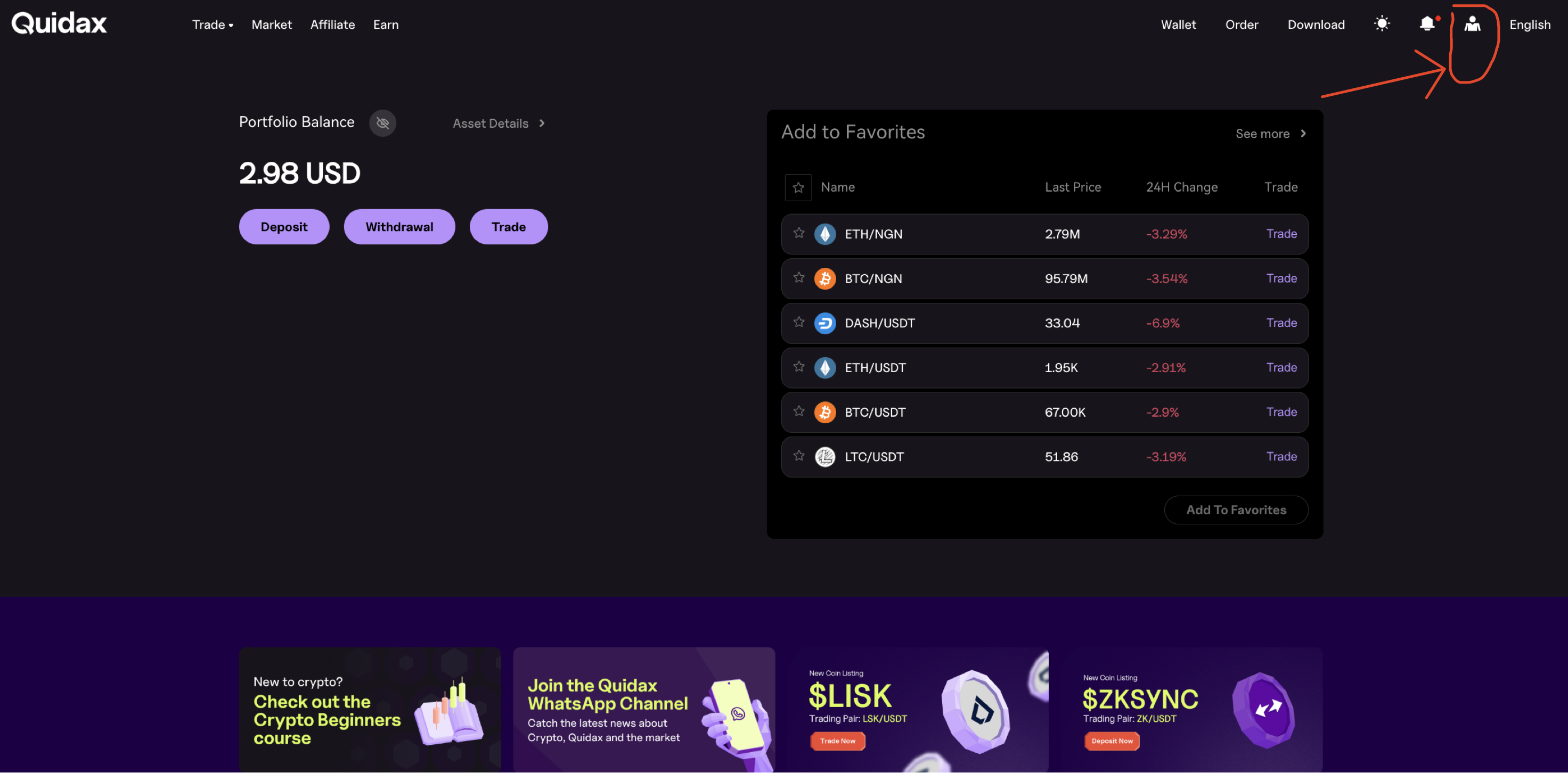
Step 1
Log in to your merchant account and click on your username in the navigation bar, then click on the user icon
Step 2
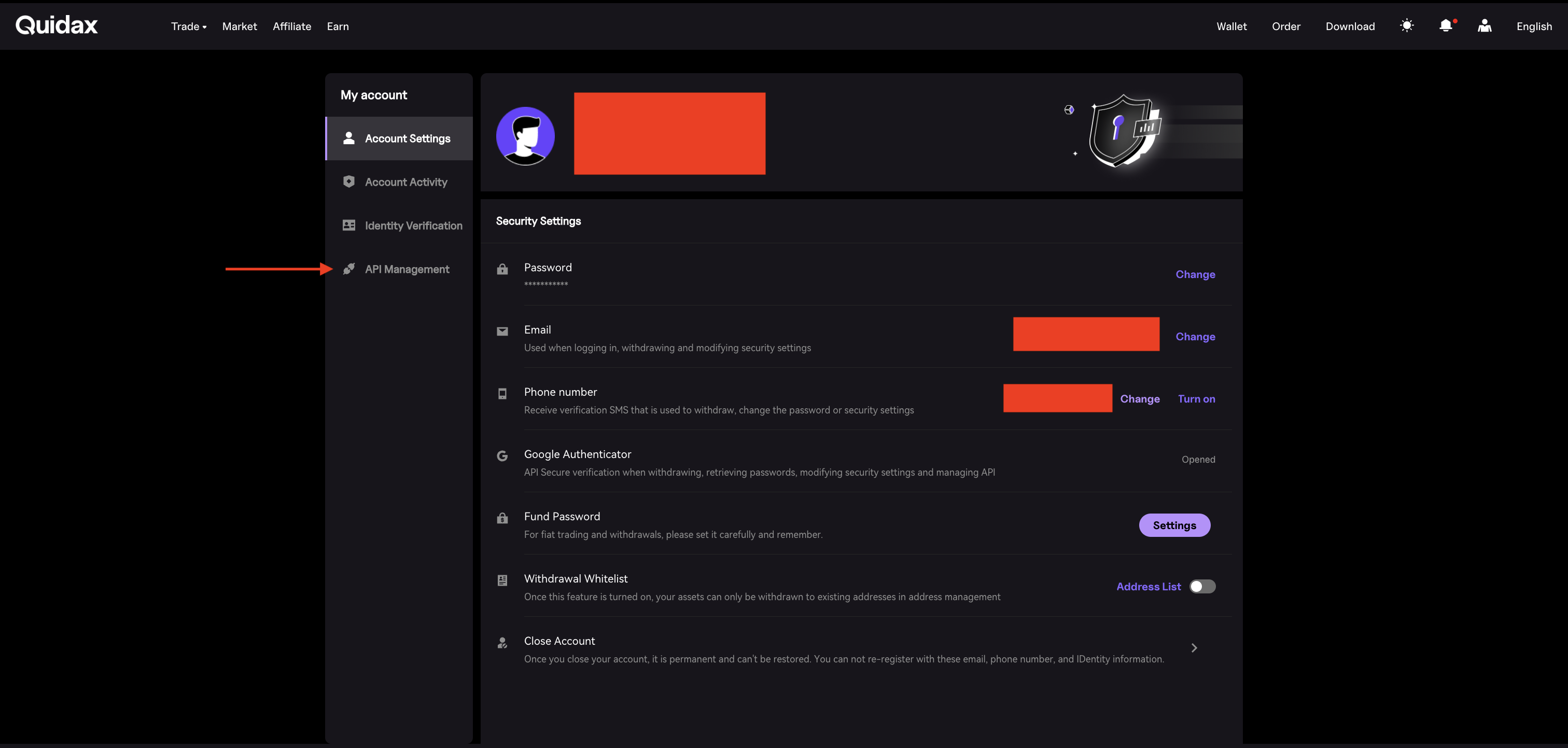
Click on the API management tab.
Step 3
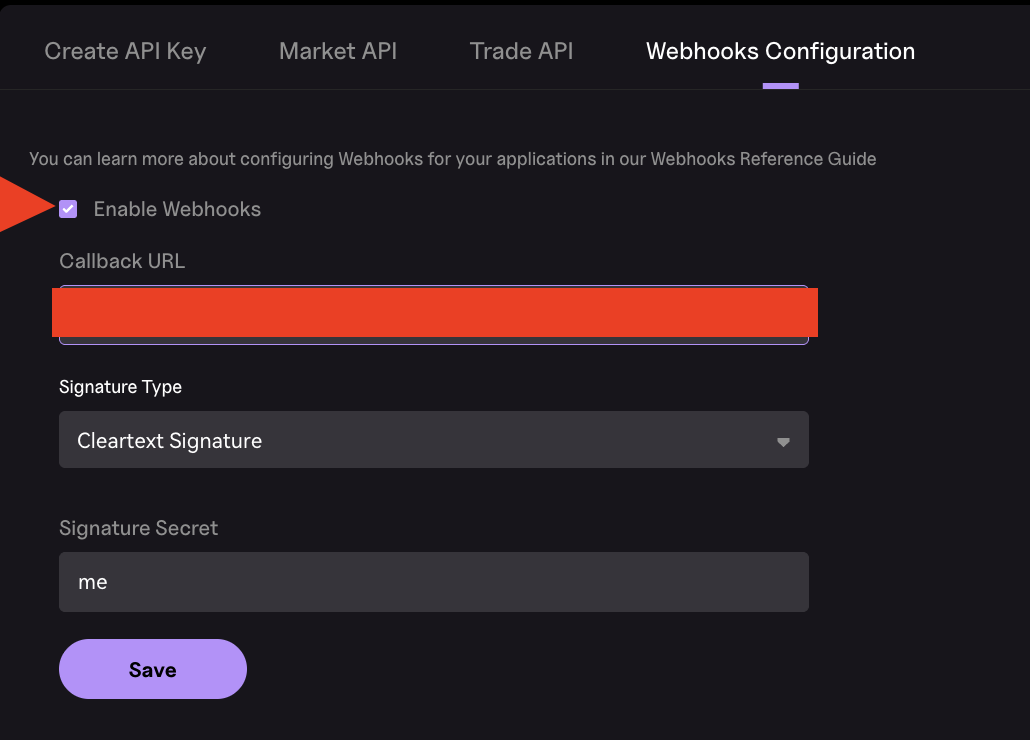
In the API Management section, click Webhook Configuration. Enter your webhook URL in the Callback URL field, select the Signature Type, provide the Signature Secret, check the Enable Webhooks box, and then click Save.
Updated 8 months ago